Product snapshot
Product snapshot
This page summarizes where ASUS ROG Swift OLED PG27UCDM fits in our buying guides and what to double-check on the retailer listing you are considering.
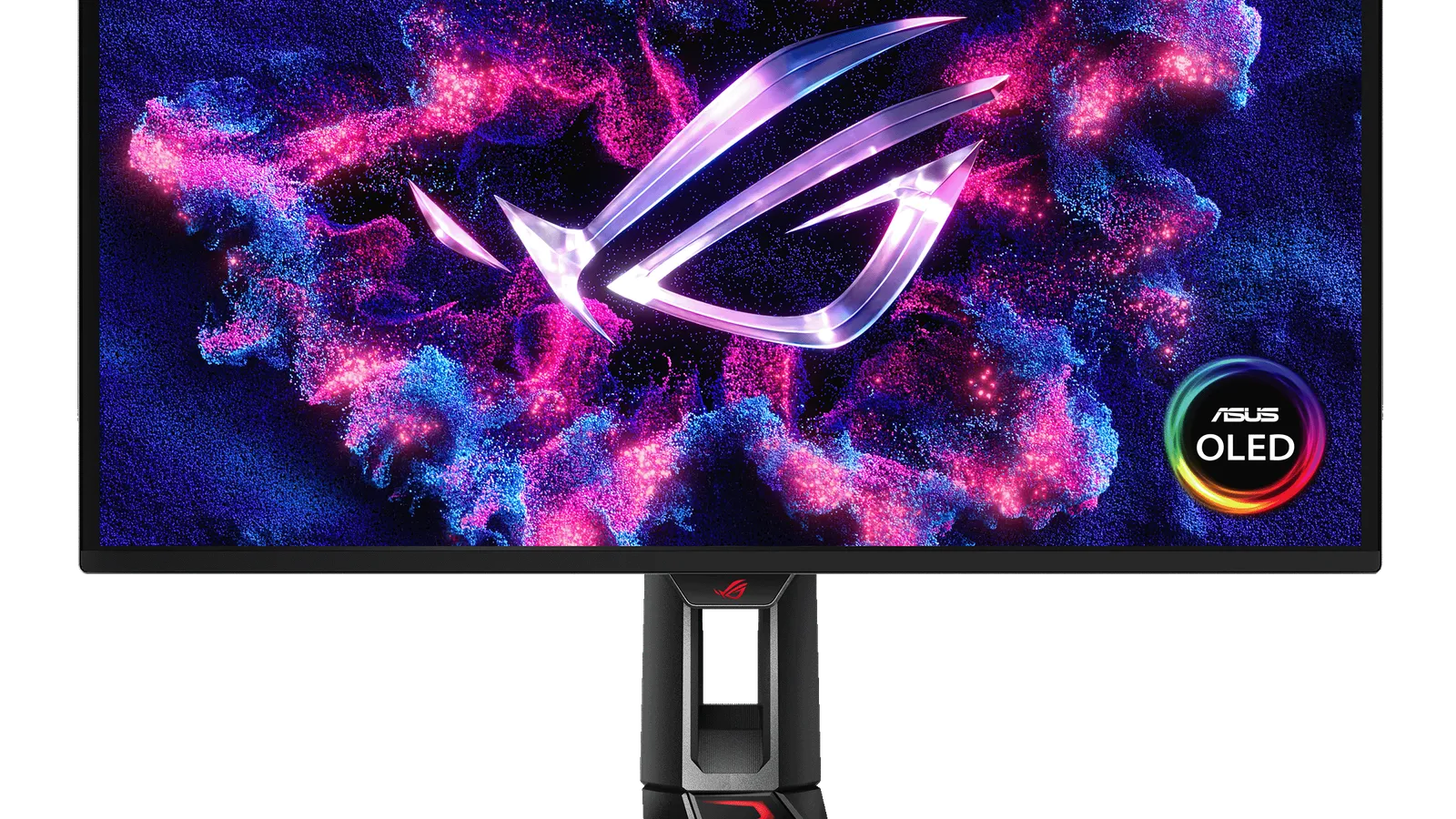
- Brand
- ASUS
- Category
- Monitors
- Where you’ll see it
- 2 buying guides
- Main use
- Best gaming monitor overall
Best gaming monitor overall
27-inch 4K QD-OLED, 240Hz, excellent motion, HDMI and DisplayPort 2.1.
Skip it if this caveat matters in your setup: OLED burn-in risk for static desktop use. That one detail can matter more than the headline spec.
Buying options
Buying options
This page does not show live prices. Use the retailer listing to verify the exact model, size, color, bundle, and return policy before buying.
Quick read
Quick verdict
- Buyer type: Competitive and cinematic PC gamer who wants flagship 4K QD‑OLED motion on a 27-inch desk—and can feed it with modern HDMI or DisplayPort bandwidth.
- Gaming role: Our “best gaming monitor overall” and 4K monitor anchor when OLED contrast and 240Hz-class motion still beat spreading budget across a larger IPS canvas.
- Pause: You run static toolbars all day without burn-in mitigations, you need a budget Mini LED lane, or your GPU cannot sustain 4K frame targets you care about.
- How we phrase performance: We describe fit using guide notes and listing checklists—we do not claim independent lab measurements performed by Better Buy Lab.
At a glance
Product snapshot
- Category: Gaming monitor—flagship 4K QD‑OLED on our gaming and 4K shortlists.
- Guide placement: “Best gaming monitor overall” on Best gaming monitors and 4K overall pick on Best 4K monitors when those routes are live.
- Likely use case: High-end desk where contrast, HDR gaming, and fast motion matter more than minimizing spend—and you will confirm ports and GPU headroom on listings.
- Appears on Better Buy Lab:
- Best Gaming Monitors — Best gaming monitor overall | Best 4K monitor overall
- Best 4K Monitors — Best gaming monitor overall | Best 4K monitor overall
- monitors/best-budget-gaming-monitors — Listed on this guide.
- monitors — Listed on this guide.
Key buying checks
How to choose the right monitor for work and games
Match resolution, refresh rate, panel type, and ports to your desk depth, graphics hardware, and whether you mostly work, game, or both. Below is how we think about ASUS ROG Swift OLED PG27UCDM for real rooms and daily use.
Match resolution and size to distance and sharpness
Very high resolution only helps if your GPU and content can use it. Too little resolution for a large screen can look soft when you sit close.
Desks where you care about sharp text and UI at a normal viewing distance.
High pixel density can require OS scaling adjustments; low resolution on a large panel looks soft up close.
Panel size, native resolution, scaling comfort, target game frame rates, and cable bandwidth.
Choose refresh rate your system can actually use
A high refresh rate helps when your PC or console can output matching frame rates and your cables support the signal. Film and casual use may not need the highest numbers.
Fast-paced gaming where you will tune graphics settings to match the display.
A high Hz label does not fix cable limits, capped sources, or GPUs already near their limit.
Target refresh rate, adaptive sync support, HDMI or DisplayPort version, and realistic FPS for your main use.
Choose panel type for your room lighting and use
OLED, IPS, VA, and Mini LED differ in contrast, brightness, glow, maintenance, and HDR behavior. Your window placement and desktop habits matter.
Buyers who know their typical room brightness and whether they run static content for long periods.
A panel praised for dark-room use may be a poor fit for an all-day bright office.
Lighting, static content habits, HDR goals, viewing angles, and any maintenance you accept.
Check stand depth, VESA, and cable paths
Deep feet, tight curves, or awkward rear ports reduce usable space for keyboard, mouse, and speakers.
Shallow desks, monitor arms, shared workspaces, or tight speaker placement.
Skipping depth measurements can crowd the keyboard or block shelving.
Footprint, height and tilt range, VESA pattern, port direction, and cable routing.
Check ports and cables before you buy
Port type and cable spec limit refresh, resolution, and charging. Assume USB-C display features are spelled out in the spec sheet.
Laptops, docks, desktops, and consoles on one desk.
Not every USB-C port carries the same video, power delivery, or data capability.
HDMI, DisplayPort, USB-C alt mode, cable labels, charger wattage, and whether the USB hub is useful.
Confirm the exact model before you buy
Model names, regions, and bundles change what is in the box. Check the manufacturer page for your country, the seller listing, warranty text, and which accessories are included.
Buyers who shop online and need the shipment to match the configuration they selected.
Small naming differences can mean different ports, stands, or power adapters between regions.
SKU, country variant, return window, warranty, and that photos match the product you add to the cart.
When headline specifications miss real-world limits
A strong specification can still disappoint if glare, noise, edge cleaning, or return terms do not fit how you use the product.
Buyers who want to compare trade-offs before deciding.
Marketing often assumes ideal conditions; your room, hearing, or layout may differ.
Return policy, upkeep (filters, bags, mop pads), physical fit in the space, and whether the downsides are acceptable.
Buyer scenarios
A few ways shoppers land here
- Competitive gaming: You want responsive OLED motion for shooters and racers when your GPU can drive 4K targets you accept.
- OLED / fast monitor buyer: You are comparing flagship QD‑OLED against mid-range OLED or IPS alternatives on our gaming guide.
- Desk setup: A 27-inch footprint with modern DP 2.1 or HDMI 2.1 cabling—not a shallow shelf that fights deep stands.
- Console or PC: You may split HDMI between a tower and a console but still need bandwidth and VRR behavior spelled out on the seller page.
These moments describe shopper intent—we are not asserting measured frame pacing or adaptive-sync quirks for every GPU stack.
Need sibling picks in plain language next? Jump to Best 4K Monitors after you jot desk measurements.
Where it fits
These lanes describe who usually arrives from our gaming and 4K monitor guides—not a verdict on your desk without listing checks.
- Competitive gaming: Flagship motion and contrast when you accept OLED ownership habits and have GPU headroom for 4K.
- OLED / fast monitor buyer: You want QD‑OLED depth without downsizing to 1440p OLED or budget IPS picks.
- Desk setup: Modern cabling, measured stand depth, and room for keyboard plus mouse without fighting the chassis.
- Console / PC use: You will confirm HDMI port count, VRR, and bandwidth on the exact listing for each source you plug in.
Highlights to confirm
Carry these highlights to the storefront listing—treat them as reminders, not benchmark printouts.
- 27-inch 4K QD-OLED, 240Hz, excellent motion, HDMI and DisplayPort 2.1.
- 4K QD-OLED, 240Hz, excellent HDR and gaming.
Trade-offs to double-check
- Skip it if this caveat matters in your setup: OLED burn-in risk for static desktop use. That one detail can matter more than the headline spec.
- Skip it if this caveat matters in your setup: OLED static-content risk. That one detail can matter more than the headline spec.
What to check before choosing
Walk desk-side with measuring tape plus GPU or console already known.
- Resolution: confirm 4K scale on 27 inches matches readability and the frame rates you expect from your GPU or console.
- Refresh rate: reconcile 240Hz-class marketing against realistic sustained delivery from your hardware.
- Panel type: QD‑OLED contrast and motion versus IPS or Mini LED alternatives still on your shortlist.
- GPU match: verify your graphics card or console can drive the fidelity and Hz you care about at 4K.
- Desk size: measure stand depth, arm VESA needs, and cable egress before you commit.
- Ports: count DisplayPort 2.1a and HDMI 2.1 lanes, docking, and KVM needs on the seller page.
- Stand depth and ergonomics: typing vibration, height travel, and whether a shallow desk fights the foot.
- OLED burn-in caveat: weigh static HUDs, news tickers, and all-day spreadsheets against how you actually use the panel.
- Brightness and room glare: note windows behind you—OLED can look stunning in dim rooms yet still need realistic SDR expectations.
Fit filter
Choose if / Skip if
Pair these bullets with refreshed listings—we keep them succinct on purpose.
Choose if
- You want the flagship OLED lane our gaming monitor guide uses for “best overall” when budget allows.
- You can feed 4K with modern bandwidth and accept OLED static-content habits with mitigations you trust.
- You value contrast and motion together more than maximizing desk size or minimizing price.
Skip if
- You need the lowest spend—our AOC Q27G3XMN note and budget gaming guide lane may fit better.
- You want mid-range 1440p OLED without 4K GPU demands—the AW2725DF note is the next read.
- You refuse any OLED static-content planning—IPS or Mini LED paths on our guides deserve a look first.
- Your GPU cannot sustain the 4K frame targets you expect at the detail presets you prefer.
Stay on-site next
Alternatives & related guides
Bounce across monitors desks and peripherals without leaving Better Buy Lab.
- Monitors hub — branch among gaming, budget, and 4K lanes.
- Best gaming monitors — primary shortlist where this model appears today.
- Best 4K monitors when pixel density drives the decision.
- Best mechanical keyboards when you rethink inputs alongside pixel response.
- Best wireless gaming mouse because pointer feel and desk clutter matter paired with monitors.
- Dell Alienware AW2725Q product note — 4K QD‑OLED value lane.
- Dell Alienware AW2725DF product note — mid-range 1440p OLED sibling.
- AOC Q27G3XMN product note — budget Mini LED contrast lane.
- Dell Alienware AW2725DM product note — budget IPS gaming lane—not OLED.
- Monitors category for every monitors guide in this aisle.
FAQ
FAQ
Is this monitor good for gaming?
Our gaming and 4K guides cite this model as the overall flagship when OLED motion and contrast fit your desk. Confirm adaptive-sync, HDR behavior, and the exact ASUS SKU on listings you trust—we do not assert measured input lag here.
Is OLED worth it for gaming monitors?
OLED can deliver exceptional contrast and motion when you accept static-desktop burn-in habits and often pay more than IPS or Mini LED alternatives. Match OLED to competitive play plus cinematic sessions—not to all-day spreadsheets with fixed toolbars—unless you plan mitigations on the listing you trust.
What refresh rate should I look for?
Aim for a refresh class your GPU or console can feed consistently at your resolution. High Hz helps competitive motion when frame delivery keeps pace; otherwise prioritize resolution or panel type first. Confirm adaptive-sync support on the exact SKU—not forum screenshots alone.
Should I choose 1440p or 4K?
Choose 1440p when your GPU targets high frame rates at high detail on a 27-inch desk. Choose 4K when pixel density for productivity and cinematic games matters more than maximum competitive Hz—and your graphics hardware can sustain it. Our gaming and 4K monitor guides frame both lanes without live prices here.
Does Better Buy Lab show live prices on this page?
When this model is eligible, the Buying options section includes a disclosed retailer link. We still do not show live prices or star-style ratings on this page.
Editorial transparency
Better Buy Lab uses this page as a product context note linked from our monitors buying guides—especially Best gaming monitors. It supports shortlist reading; it is not a scored review or a storefront.
We describe fit using guide-level notes and shopper checklists. We do not claim independent lab measurements or calibrated panel benches performed by Better Buy Lab. Notes refresh when listings evolve. Disclosed retailer links on eligible product pages appear in the Buying options section. This page does not show live prices or star-style ratings. Disclosed retailer links appear in the Buying options section above when this model is eligible.
In our guides
Buying guides referencing this SKU today.
Best 4K Monitors
Best gaming monitor overall | Best 4K monitor overall
Best Gaming Monitors
Best gaming monitor overall | Best 4K monitor overall