Guide summary
Best 4K monitors for work, Mac, and mixed use
Four-K only helps when scaling, text size, and cable bandwidth fit your Mac or PC workflow—this guide sorts work, creator, and play lanes.
6 of 6 shortlist picks have editorial photos on this page.
- Category
- Monitors
- Shortlist
- 6 tracked picks
- Lead pick
- ASUS ROG Swift OLED PG27UCDM
- Use case
- Best gaming monitor overall
Key buying checks
How to choose the right monitor for work and games
Match resolution, refresh rate, panel type, and ports to your desk depth, graphics hardware, and whether you mostly work, game, or both. Use these checks while you read the shortlist—they separate good fits from common buyer mistakes.
Match resolution and size to distance and sharpness
Very high resolution only helps if your GPU and content can use it. Too little resolution for a large screen can look soft when you sit close.
Desks where you care about sharp text and UI at a normal viewing distance.
High pixel density can require OS scaling adjustments; low resolution on a large panel looks soft up close.
Panel size, native resolution, scaling comfort, target game frame rates, and cable bandwidth.
Choose refresh rate your system can actually use
A high refresh rate helps when your PC or console can output matching frame rates and your cables support the signal. Film and casual use may not need the highest numbers.
Fast-paced gaming where you will tune graphics settings to match the display.
A high Hz label does not fix cable limits, capped sources, or GPUs already near their limit.
Target refresh rate, adaptive sync support, HDMI or DisplayPort version, and realistic FPS for your main use.
Choose panel type for your room lighting and use
OLED, IPS, VA, and Mini LED differ in contrast, brightness, glow, maintenance, and HDR behavior. Your window placement and desktop habits matter.
Buyers who know their typical room brightness and whether they run static content for long periods.
A panel praised for dark-room use may be a poor fit for an all-day bright office.
Lighting, static content habits, HDR goals, viewing angles, and any maintenance you accept.
Check stand depth, VESA, and cable paths
Deep feet, tight curves, or awkward rear ports reduce usable space for keyboard, mouse, and speakers.
Shallow desks, monitor arms, shared workspaces, or tight speaker placement.
Skipping depth measurements can crowd the keyboard or block shelving.
Footprint, height and tilt range, VESA pattern, port direction, and cable routing.
Check ports and cables before you buy
Port type and cable spec limit refresh, resolution, and charging. Assume USB-C display features are spelled out in the spec sheet.
Laptops, docks, desktops, and consoles on one desk.
Not every USB-C port carries the same video, power delivery, or data capability.
HDMI, DisplayPort, USB-C alt mode, cable labels, charger wattage, and whether the USB hub is useful.
Confirm the exact model before you buy
Model names, regions, and bundles change what is in the box. Check the manufacturer page for your country, the seller listing, warranty text, and which accessories are included.
Buyers who shop online and need the shipment to match the configuration they selected.
Small naming differences can mean different ports, stands, or power adapters between regions.
SKU, country variant, return window, warranty, and that photos match the product you add to the cart.
When headline specifications miss real-world limits
A strong specification can still disappoint if glare, noise, edge cleaning, or return terms do not fit how you use the product.
Buyers who want to compare trade-offs before deciding.
Marketing often assumes ideal conditions; your room, hearing, or layout may differ.
Return policy, upkeep (filters, bags, mop pads), physical fit in the space, and whether the downsides are acceptable.
4K monitor decision map
Choose 4K only when the desk, device, and workflow fit
These paths cover productivity, gaming, creative work, panel choice, scaling, GPU fit, and desk layout. They reflect Better Buy Lab editorial research only.
4K productivity desk
- Use this path when
- Start here when text clarity, desktop space, window layout, USB-C workflow, or mixed office use is the reason to choose 4K.
- Avoid this shortcut if
- Do not choose 4K by default if the desk is shallow, scaling is uncomfortable, or gaming speed matters more than sharpness.
- Next step
- Check desk depth, operating-system scaling comfort, and laptop or desktop output support before comparing products.
4K gaming and console path
- Use this path when
- Use the gaming monitor route if high-refresh play, console compatibility, GPU fit, or motion feel is as important as 4K sharpness.
- Avoid this shortcut if
- Do not buy a 4K monitor for gaming without checking whether the connected device can make good use of the panel.
- Next step
- Use the gaming page to separate resolution from refresh, ports, and motion expectations.
Affordable 4K desk setup
- Use this path when
- Use the budget gaming monitor route when the goal is a safer budget-friendly display and you can accept clearer compromises.
- Avoid this shortcut if
- Do not expect every budget 4K or gaming display to deliver premium HDR, ergonomics, bandwidth, and motion behavior.
- Next step
- Decide which feature can be compromised before narrowing the shortlist.
OLED 4K caution
- Use this path when
- Use OLED when contrast, motion, and immersive gaming matter most and static desktop habits are under control.
- Avoid this shortcut if
- Do not default to OLED for always-on office apps, static toolbars, or heavy productivity unless ownership risk is acceptable.
- Next step
- Compare the OLED path against Mini LED or LCD-style options before treating it as the premium default.
Mini LED or LCD 4K
- Use this path when
- Use this path when brightness, static desktop comfort, text work, and lower ownership anxiety matter more than OLED motion and contrast.
- Avoid this shortcut if
- Do not assume Mini LED or LCD is automatically better if blooming, viewing angle, or motion behavior is the real pain point.
- Next step
- Confirm which panel compromise fits the desk and use case.
Monitor category hub
- Use this path when
- Use the monitor hub if the decision is still between 4K work, gaming, budget gaming, desk setup, or mixed productivity.
- Avoid this shortcut if
- Do not lock into 4K until the buyer problem is clear.
- Next step
- Return to the hub when resolution is only one of several constraints.
4K monitor buyer depth
Inside this 4K monitor guide
The public page can help readers decide whether 4K belongs on their desk. Exact product facts, current commercial output, media, and advanced schema stay blocked until evidence clears.
When shortlist models stay live but desk-fit questions remain, cross-read LG 27GX790B-B product note, ASUS ROG Swift OLED PG27UCDM product note, Dell Alienware AW2725Q product note, Dell Alienware AW2725DF product note, AOC Q27G3XMN product note, and Acer Nitro XV275K P5biipruzx product note—commerce-free checklist pages beside this guide, not storefronts.
When productivity-first 4K desks need USB-C hub depth and text clarity—not gaming refresh marketing—cross-read Dell U2725QE product note, Dell S2725QC product note, and KOORUI S2741LM product note for commerce-free office-monitor homework beside this guide.
Resolution is a workflow decision
The page now separates 4K sharpness from desk depth, scaling comfort, GPU fit, laptop output, console use, and day-to-day window layout.
Productivity, gaming, and creator paths
Readers get separate routes for office clarity, 4K gaming, creator-style precision needs, and mixed-use compromises.
Panel trade-offs stay visible
OLED, Mini LED, IPS, and VA-style choices are framed around text clarity, static desktop risk, HDR behavior, motion, brightness, and ownership comfort.
Feature details need listing checks
Exact refresh behavior, port bandwidth, USB-C behavior, HDR behavior, color claims, product media, and retailer paths still need confirmation from current product listings.
4K monitor pick logic
How to read the 4K monitor shortlist
These notes explain setup roles for this guide. They are not final verdicts, owned measurement results, prices, retailer claims, stock claims, or review ratings.
ASUS ROG Swift OLED PG27UCDM
- 4K role
- Best 4K monitor overall
- Why it’s listed here
- 4K QD-OLED, 240Hz, excellent HDR and gaming.
- Watch out
- Skip it if this caveat matters in your setup: OLED static-content risk. That one detail can matter more than the headline spec.
Acer Nitro XV275K P5biipruzx
- 4K role
- Best upper mid-range 4K LCD
- Why it’s listed here
- Mini LED HDR, 4K sharpness, strong mixed-use value.
- Watch out
- Skip it if this caveat matters in your setup: Not OLED-level motion or blacks. That one detail can matter more than the headline spec.
Dell Alienware AW2725Q
- 4K role
- Best cheaper 4K OLED alternative
- Why it’s listed here
- Similar 4K OLED experience at a lower-tier positioning when the offer lines up.
- Watch out
- Skip it if this caveat matters in your setup: Fewer premium features than ASUS. That one detail can matter more than the headline spec.
KOORUI S2741LM
- 4K role
- Best mid-range 4K value
- Why it’s listed here
- Fast 4K LCD performance in a lower commercial tier.
- Watch out
- Skip it if this caveat matters in your setup: Brand/support confidence should be verified. That one detail can matter more than the headline spec.
Dell U2725QE
- 4K role
- Best 4K office monitor
- Why it’s listed here
- USB-C productivity hub, sharp text, ergonomic work setup.
- Watch out
- Skip it if this caveat matters in your setup: Not a gaming-first display. That one detail can matter more than the headline spec.
Dell S2725QC
- 4K role
- Best budget 4K office pick
- Why it’s listed here
- Value-oriented 4K sharpness with useful USB-C features.
- Watch out
- Skip it if this caveat matters in your setup: Weak HDR and lower refresh. That one detail can matter more than the headline spec.
Shortlist at a glance
Use these cards for buyer-fit context and research notes first. Optional Amazon listing buttons appear only on approved picks—always confirm model, bundle, and seller on the listing you open.
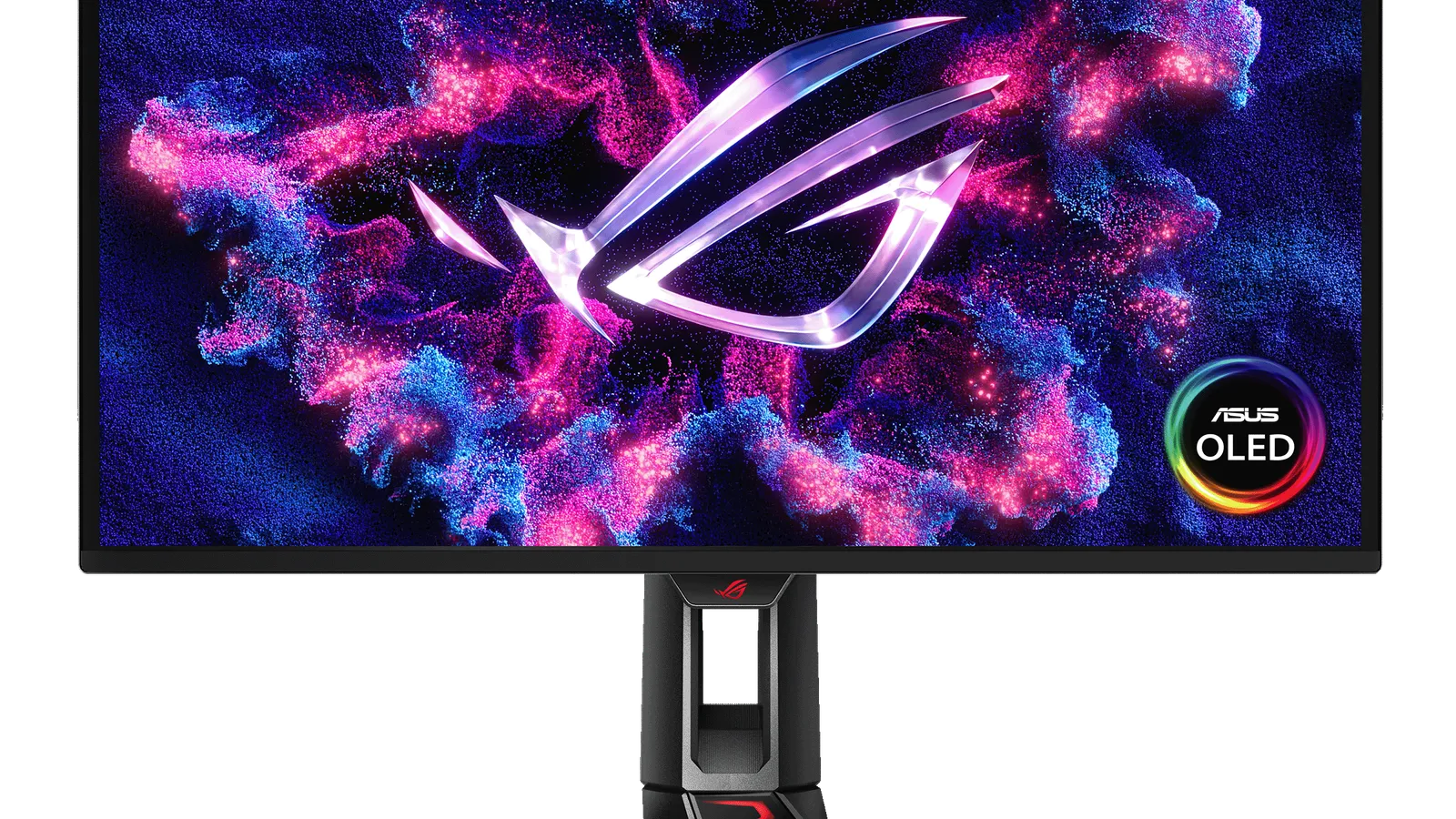
ASUS ROG Swift OLED PG27UCDM
Best 4K monitor overall
- Best for
- Best 4K monitor overall
- Why it is here
- 4K QD-OLED, 240Hz, excellent HDR and gaming
- Watch-out
- OLED static-content risk
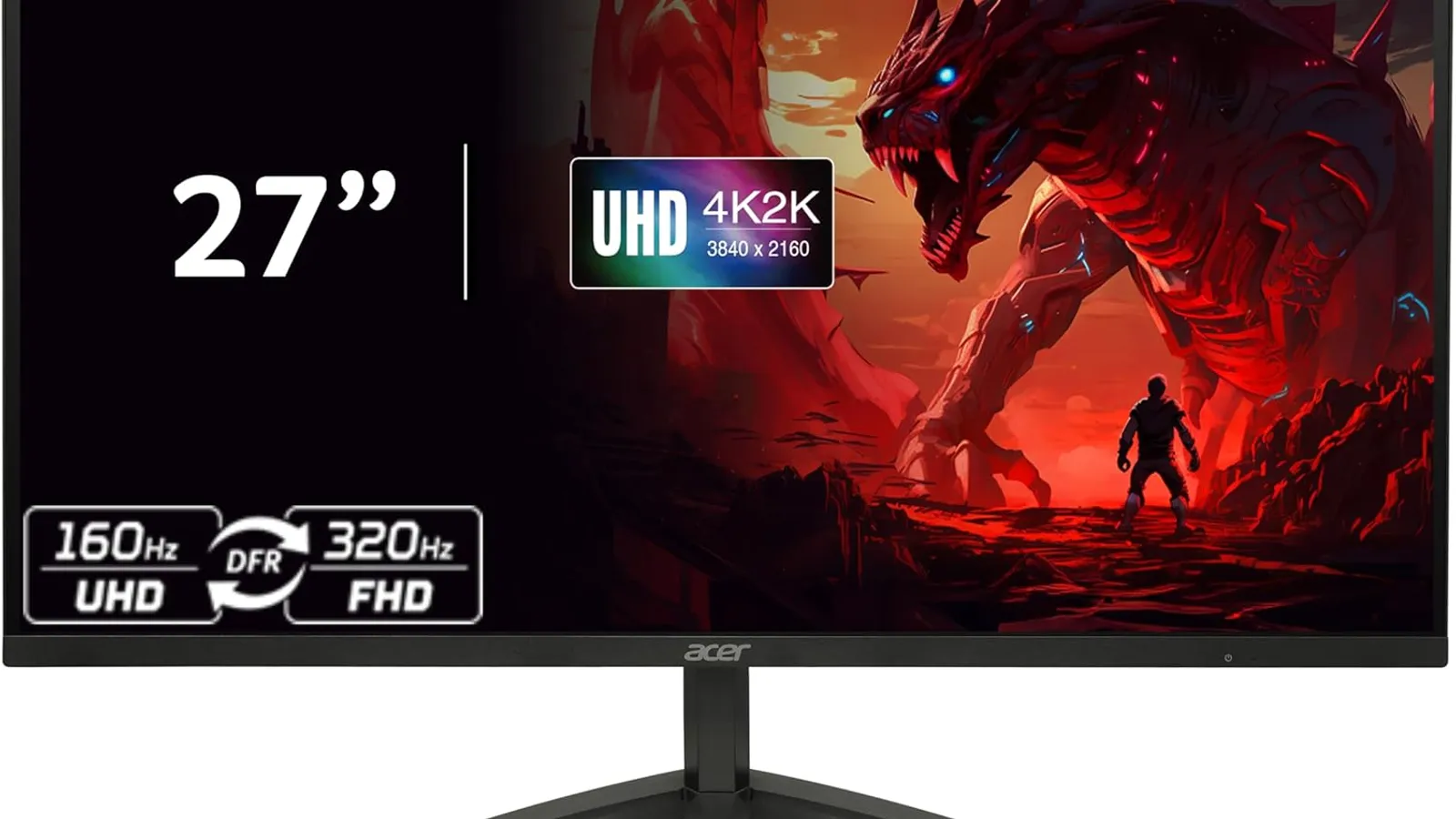
Acer Nitro XV275K P5biipruzx
Best upper mid-range 4K LCD
- Best for
- Best upper mid-range 4K LCD
- Why it is here
- Mini LED HDR, 4K sharpness, strong mixed-use value
- Watch-out
- Not OLED-level motion or blacks
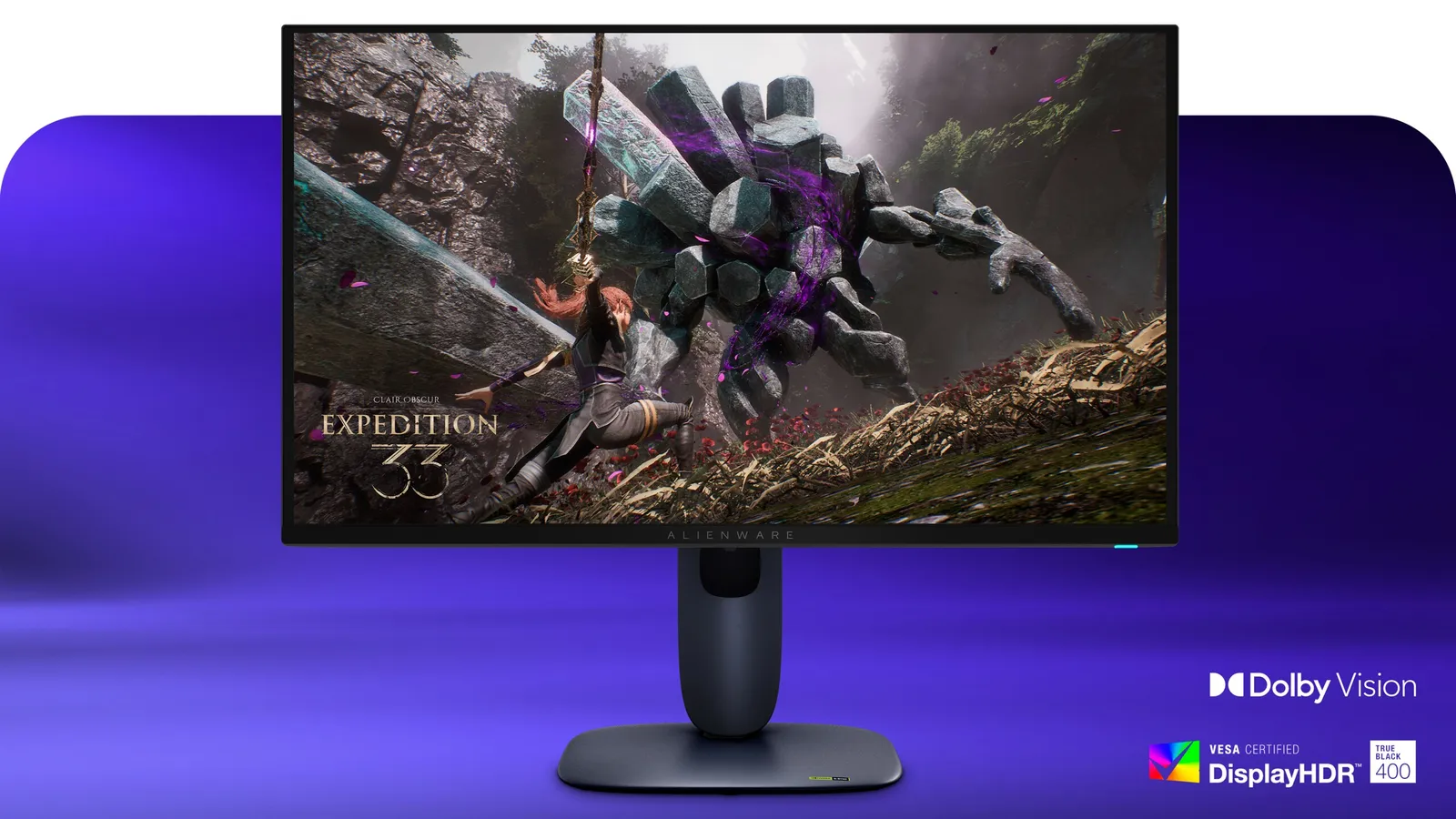
Dell Alienware AW2725Q
Best cheaper 4K OLED alternative
- Best for
- Best cheaper 4K OLED alternative
- Why it is here
- Similar 4K OLED experience at a lower-tier positioning when the offer lines up
- Watch-out
- Fewer premium features than ASUS
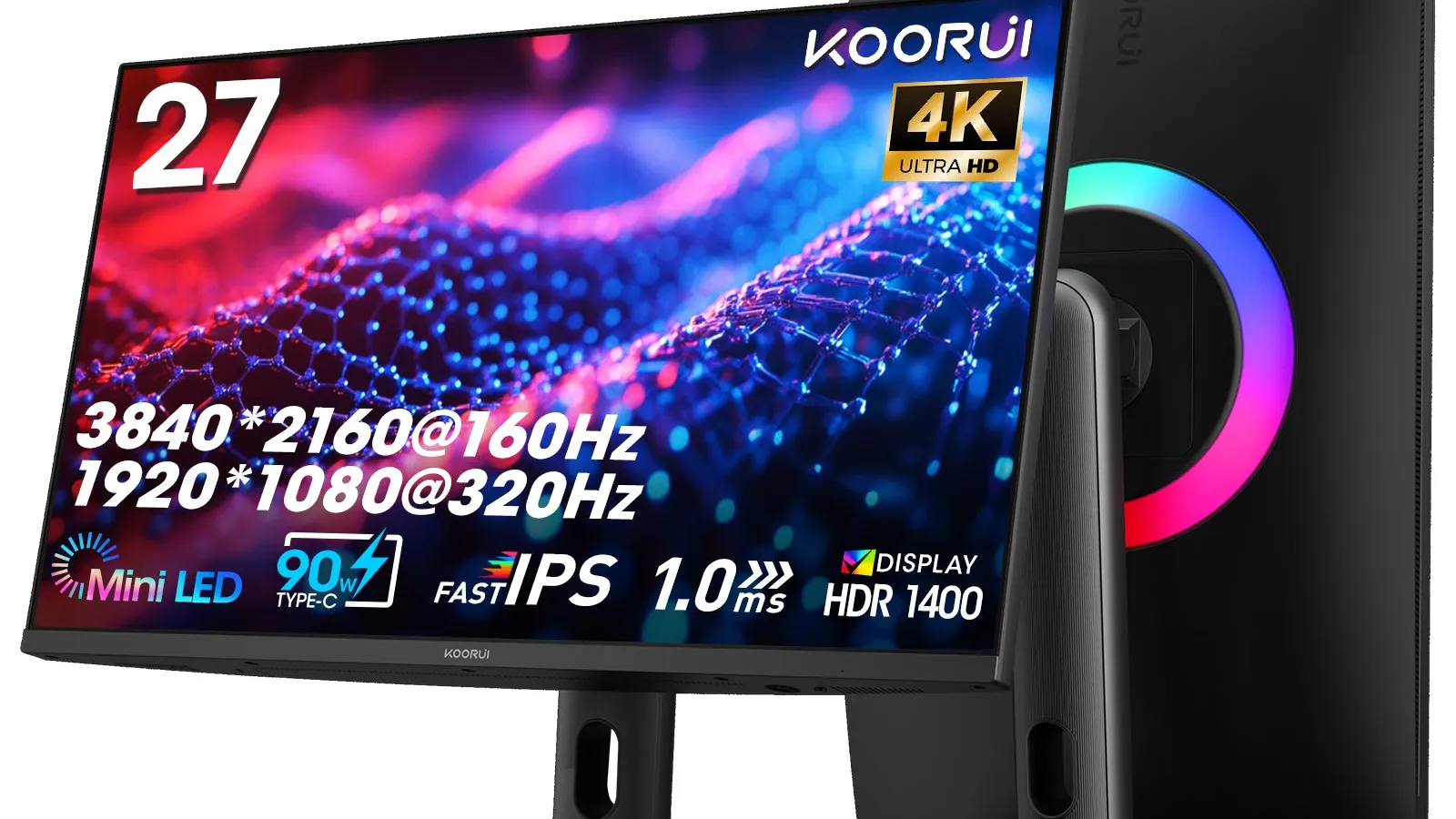
KOORUI S2741LM
Best mid-range 4K value
- Best for
- Best mid-range 4K value
- Why it is here
- Fast 4K LCD performance in a lower commercial tier
- Watch-out
- Brand/support confidence should be verified
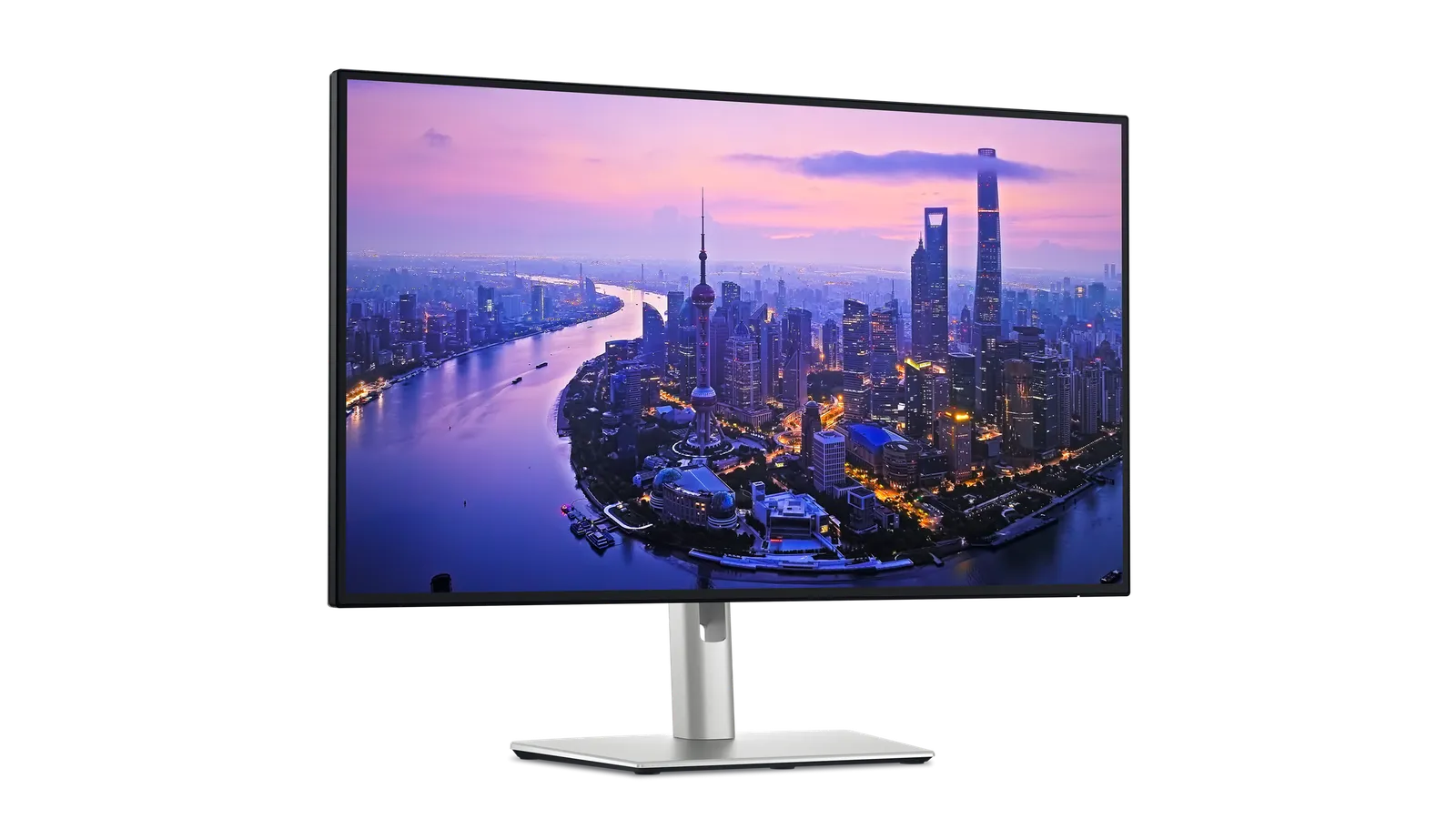
Dell U2725QE
Best 4K office monitor
- Best for
- Best 4K office monitor
- Why it is here
- USB-C productivity hub, sharp text, ergonomic work setup
- Watch-out
- Not a gaming-first display
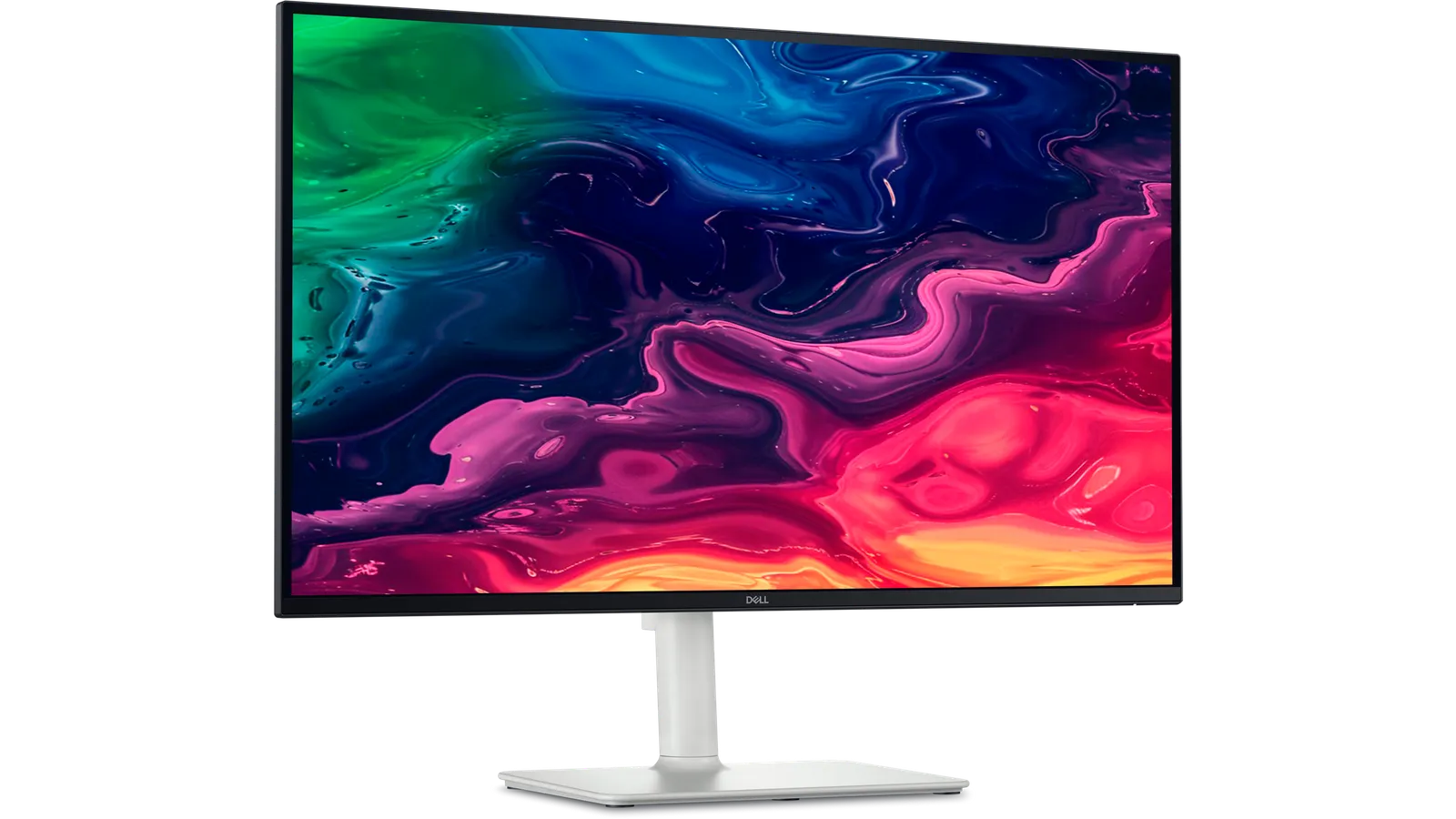
Dell S2725QC
Best budget 4K office pick
- Best for
- Best budget 4K office pick
- Why it is here
- Value-oriented 4K sharpness with useful USB-C features
- Watch-out
- Weak HDR and lower refresh
Related Monitors best lists
Use these monitors lists to narrow the shortlist by use case, setup, and buyer constraints.
Best Budget Gaming Monitors
The best budget gaming monitors for budget buyers, including 1440p Mini LED, cheap esports, 32-inch, ultrawide, and console-friendly options.
Best Gaming Monitors
A practical guide to the best gaming monitors for PC, PS5, Xbox, OLED HDR, esports, 4K, and budget buyers.
Quick Verdict
4K is the cleanest monitor upgrade for text, spreadsheets, timelines, photos, and high-detail games. The mistake is assuming every 4K panel is good at the same job. If you only skim one section, use the table below to match the product to your room, budget, and main use case. The goal is not to crown the fanciest product; the goal is to prevent the wrong purchase.
Our recommendation logic is simple: start with the model that solves the biggest real-world problem, then check whether the value still makes sense today. A premium pick should earn its price through visible benefits. A budget pick should be cheap without creating buyer's remorse.
Comparison Table
| Pick | Best for | Why it is here | Watch-out |
|---|---|---|---|
| ASUS ROG Swift OLED PG27UCDM | Best 4K monitor overall | 4K QD-OLED, 240Hz, excellent HDR and gaming | OLED static-content risk |
| Dell Alienware AW2725Q | Best cheaper 4K OLED alternative | Similar 4K OLED experience at a lower-tier positioning when the offer lines up | Fewer premium features than ASUS |
| Acer Nitro XV275K P5biipruzx | Best upper mid-range 4K LCD | Mini LED HDR, 4K sharpness, strong mixed-use value | Not OLED-level motion or blacks |
| KOORUI S2741LM | Best mid-range 4K value | Fast 4K LCD performance in a lower commercial tier | Brand/support confidence should be verified |
| Dell U2725QE | Best 4K office monitor | USB-C productivity hub, sharp text, ergonomic work setup | Not a gaming-first display |
| Dell S2725QC | Best budget 4K office pick | Value-oriented 4K sharpness with useful USB-C features | Weak HDR and lower refresh |
How We Chose
For this page, the editorial team should score each candidate against the following criteria:
- pixel density
- panel type
- USB-C power delivery
- refresh rate
- HDMI 2.1
- color accuracy
- HDR brightness
- ergonomics
Do not rank products by spec-sheet glamour alone. Weight the criteria according to the reader's likely room and use case. For example, a buyer searching for best 4K monitor usually wants a clean shortlist, plain-English trade-offs, and a fast path to a shortlist or deeper review.
1. ASUS ROG Swift OLED PG27UCDM: Best 4K monitor overall
Expert take: This is the monitor halo product: 4K sharpness, OLED contrast, and high refresh in one display. The caution is not performance; it is whether the user has enough GPU power and can manage OLED care.
Why it makes the list: 4K QD-OLED, 240Hz, excellent HDR and gaming.
Who should buy it: Choose this if your priority is best 4k monitor overall and the current value keeps it in the right tier. This is the product card where the editor should explain the real-world setup, not just repeat specs.
Who should skip it: Skip it if this caveat matters in your setup: OLED static-content risk. That one detail can matter more than the headline spec.
2. Dell Alienware AW2725Q: Best cheaper 4K OLED alternative
Expert take: This is the cheaper 4K OLED alternative when the ASUS flagship is too higher-commitment. It belongs in price-watch modules.
Why it makes the list: Similar 4K OLED experience at a lower-tier positioning when the offer lines up.
Who should buy it: Choose this if your priority is best cheaper 4k OLED alternative and the current value keeps it in the right tier. This is the product card where the editor should explain the real-world setup, not just repeat specs.
Who should skip it: Skip it if this caveat matters in your setup: Fewer premium features than ASUS. That one detail can matter more than the headline spec.
3. Acer Nitro XV275K P5biipruzx: Best upper mid-range 4K LCD
Expert take: This is the Mini LED alternative for buyers who want 4K and HDR brightness without OLED risk. It is a good bridge between budget LCD and premium OLED.
Why it makes the list: Mini LED HDR, 4K sharpness, strong mixed-use value.
Who should buy it: Choose this if your priority is best upper mid-range 4k lcd and the current value keeps it in the right tier. This is the product card where the editor should explain the real-world setup, not just repeat specs.
Who should skip it: Skip it if this caveat matters in your setup: Not OLED-level motion or blacks. That one detail can matter more than the headline spec.
4. KOORUI S2741LM: Best mid-range 4K value
Expert take: This is the aggressive-value 4K option. It needs extra editor attention around warranty, retailer reliability, and long-term support.
Why it makes the list: Fast 4K LCD performance in a lower commercial tier.
Who should buy it: Choose this if your priority is best mid-range 4k value and the current value keeps it in the right tier. This is the product card where the editor should explain the real-world setup, not just repeat specs.
Who should skip it: Skip it if this caveat matters in your setup: Brand/support confidence should be verified. That one detail can matter more than the headline spec.
5. Dell U2725QE: Best 4K office monitor
Expert take: This is the productivity-first 4K pick. USB-C, ergonomics, and text clarity matter more here than cinematic HDR.
Why it makes the list: USB-C productivity hub, sharp text, ergonomic work setup.
Who should buy it: Choose this if your priority is best 4k office monitor and the current value keeps it in the right tier. This is the product card where the editor should explain the real-world setup, not just repeat specs.
Who should skip it: Skip it if this caveat matters in your setup: Not a gaming-first display. That one detail can matter more than the headline spec.
6. Dell S2725QC: Best budget 4K office pick
Expert take: This is the budget 4K office pick. It is for buyers who want sharp text and laptop convenience without paying gaming-monitor prices.
Why it makes the list: Value-oriented 4K sharpness with useful USB-C features.
Who should buy it: Choose this if your priority is best budget 4k office pick and the current value keeps it in the right tier. This is the product card where the editor should explain the real-world setup, not just repeat specs.
Who should skip it: Skip it if this caveat matters in your setup: Weak HDR and lower refresh. That one detail can matter more than the headline spec.
What To Avoid
- Avoid buying only because a product is value-positioned. A bad fit at a value window is still a bad fit.
- Avoid overpaying for features you will not use. A gaming-first feature set is wasted on a movie-only setup, and creator-grade accuracy is wasted on casual streaming.
- Avoid single-retailer tunnel vision. Check at least two retailers because availability, return windows, bundle offers, and price-match policies can change the true value.
- Avoid publishing this page without a price freshness check. The top recommendation can change when one model gets a major value window.
Buying Advice By Scenario
If you want the safest pick
Choose the product labeled Best overall if the reader wants the fewest compromises and is comfortable paying more for a complete experience.
If you want the best value
Choose the value or mid-range pick if the premium model is meaningfully more higher-commitment but does not solve a problem the reader actually has.
If you are budget-limited
Choose the budget pick only after verifying current price, stock, warranty, and return policy. Budget products are where retailer support matters most.
If you are waiting for a sale
If you are not buying today, keep the shortlist and re-check it when verified deal paths are available.
FAQ
Is a 4K monitor worth it?
Yes if you read text all day, edit photos/video, use a MacBook, or want sharper gaming. If you mainly play competitive shooters, 1440p high-refresh can be better value.
Is 27-inch or 32-inch better for 4K?
27-inch 4K is very sharp and great for desks. 32-inch 4K gives more physical workspace and feels better for creators or immersive gaming.
Do I need USB-C?
USB-C is worth it for laptops because one cable can handle display, charging, and peripherals. Desktop-only users may care more about HDMI and DisplayPort.
Should I buy OLED for work?
Only if your work is mixed with media/gaming and you manage static elements carefully. Office-heavy users should usually buy IPS or Mini LED LCD.